How to download Pinterest videos on any device
One flow, three platforms, every quirk explained — iPhone camera roll, Android gallery, PC downloads folder.
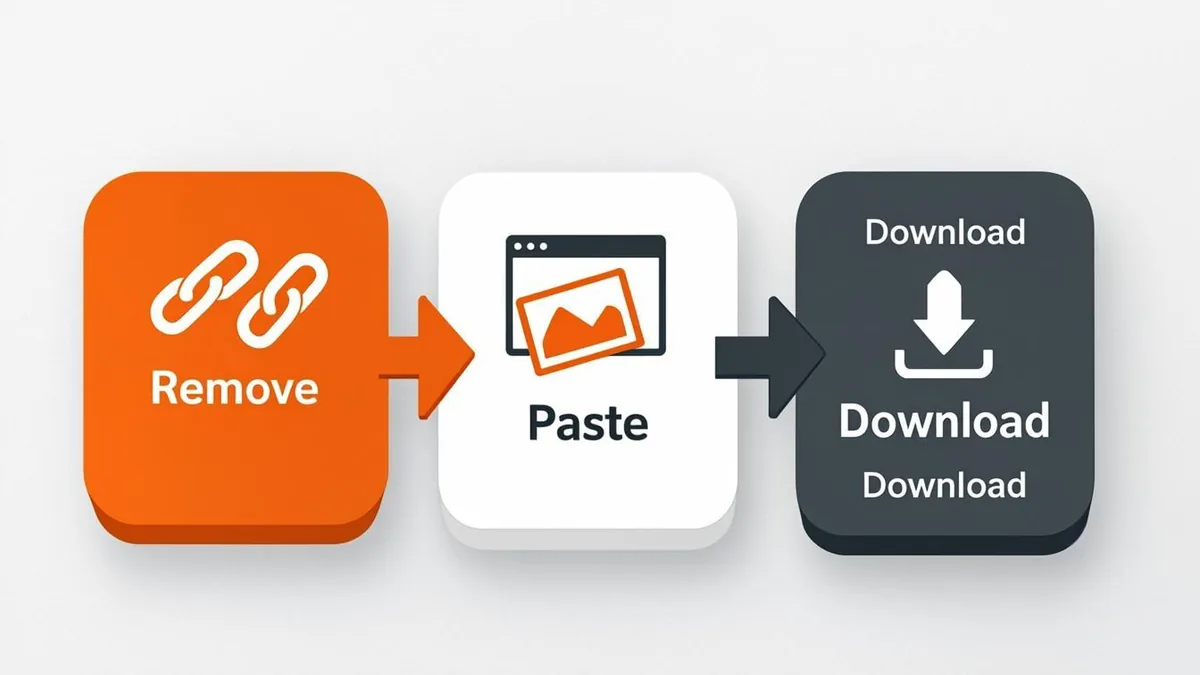
Downloading a Pinterest video takes about fifteen seconds once you know the flow: copy the pin link, paste it into a downloader, save the MP4. The PinRip Pinterest video downloader runs in any browser, free, with no watermark and no login — and it works identically on every device you own. What changes from platform to platform is only the small stuff: where the file lands, how you move it to your gallery or camera roll, and the couple of iOS quirks worth knowing in advance.
This guide walks the full path on all three platforms — phone-first, then desktop — plus the edge cases that trip people up: pins that won't resolve, quality questions, and the difference between a real download and a screen recording.
The universal flow (works everywhere)
Every platform starts the same way. Open the video pin and copy its link: in the Pinterest app, tap the share icon → Copy link; on desktop, copy the URL from the address bar. Then open pinrip.com, paste the link into the box, and press Download Video. PinRip resolves the original MP4 — the exact file Pinterest hosts, up to 1080p — and your browser takes it from there.
That last phrase is the key: your browser handles the download. That's why the tool needs no app install, no permissions, and works the same on a 2016 phone and a 2026 laptop. The only difference is where the browser puts the file.
On iPhone: the Files-app detour
Safari downloads the MP4 into the Files app (Downloads folder) — Apple doesn't let websites write straight to Photos. Long-press the file and hit Save to Photos, or open it and use the share sheet's Save Video. Five extra seconds, and you gain a permanent copy in Files as a bonus archive.
The most common iPhone mistake is expecting the video to appear in Photos automatically. It won't — check Files first, then save over. The full iPhone guide covers iOS 15–18 differences and the share-sheet flow.
On Android and PC: it just lands
Android saves the MP4 to your Download folder, and Gallery/Google Photos index it within seconds — no detour. On Windows, Mac or Linux the file goes to your Downloads folder like any browser download. Pin the PinRip tab next to Pinterest and you can copy-paste links in a rhythm on desktop; the PC guide has the batch workflow.
Quick tips & common gotchas
- “GIFs” are usually videos. Most animated Pinterest pins are short looping MP4s — they download exactly like videos. True GIF files have their own GIF downloader flow.
- Private pins can't resolve. If pasting fails, the pin is likely private, deleted, or from a locked account. No downloader can fix that — it's not an error on your side.
- Quality matches the upload. PinRip saves the original file: 1080p pins arrive as 1080p, 720p as 720p. No downloader can invent pixels that were never uploaded.
- Rename immediately. Downloads land with pin-code filenames —
morning-yoga.mp4beatspin.7f3a9.mp4a month later. - Whole boards? Paste the board link instead of a pin link and the board downloader packs every video, image and GIF into one ZIP.
The one-line rule: if you can watch it in Pinterest, you can save the original file — paste the link, everything else is your browser's job.
That's the entire skill. Bookmark pinrip.com, keep one tab open beside Pinterest, and every video worth keeping becomes a file you actually own — full quality, no watermark, offline forever.